Skip to Navigation | Skip to Content

MAT 110 - Digital Imaging 1: Adobe Photoshop

Menu

Class Schedule

Week 1 (8/18 + 8/20)

Topics + Learning Objectives

  • Introduction to the class
  • Introduction to digital imaging and Photoshop
  • What does it mean to go digital?
  • What's a pixel?
  • The Photoshop interface: tools, panels, and menus
  • Customizing your workspace
  • The breadth and depth of Photoshop: How many ways to zoom?

LINKS + Resources

Sample Files

Index of Video Tutorials

PBS Off Book Video

Adobe Photoshop - Inspirational Ads

Photoshop is now over 30 years old. Here's a look back.

The Software

Adobe Photoshop Resources

Books

  • Digital Artistry and Special Effects with Photoshop by Jill Malone. Digital version available free through our Canvas course website.
  • Visual Alchemy: The Fine Art of Digital Montage by Catherine McIntyre. Digital version available for free through Safari Books Online.
  • The Photoshop Workbook: Professional Retouching and Compositing Tips, Tricks, and Techniques by Glyn Dewis. Digital version available for free through Safari Books Online.

Featured Artist of the Week

Homework and Lab Tasks

> Go to Top

Week 2 (8/25 + 8/27)

Topics + Learning Objectives

  • Image Size, Canvas Size, and Resolution
  • Cropping, Sizing, and Straightening Imagery
  • The Photoshop Toolbox (continued)
  • Image and Tonal Range Adjustments
  • Understanding the Histogram
  • Levels, Curves, Brightness and Contrast
  • Image Transformations: Scale, Rotation, Distortion
  • Dodging and Burning
  • Shadow/Highlight Adjustments
  • Adjustment Layers and Smart Objects for Non-Destructive Editing

LINKS & Resources

Index of Video Tutorials

Adobe Photoshop Resources

Sample Files

Featured Artist(s) of the Week

Exercise #1: Tonal Range Collage (DUE 9/3)

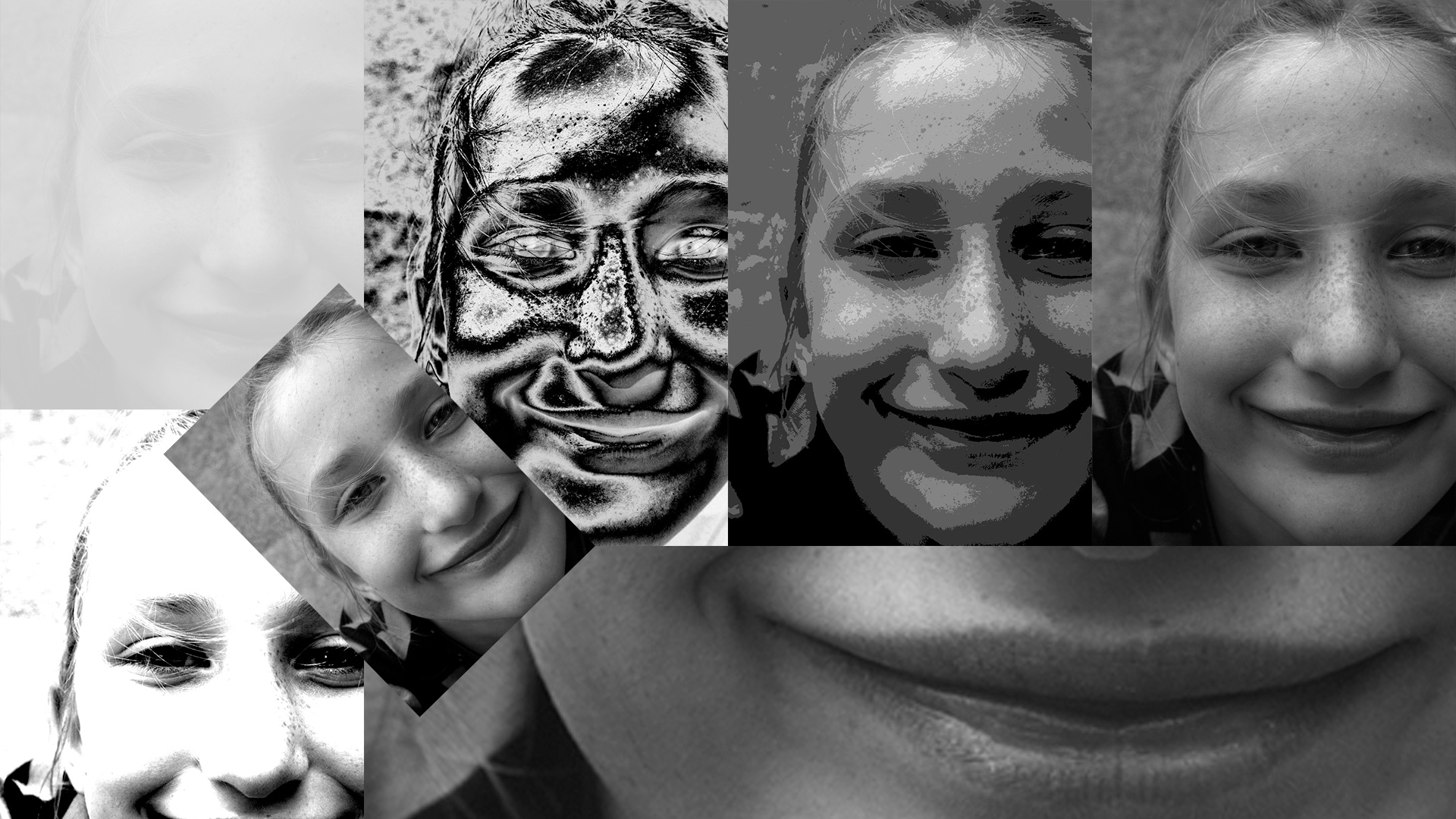
Create a photo-collage containing six to eight versions of one image, varying the tonal range of each version. Begin by finding a black and white photo or using one of the sample photos provided in class (you can convert a color photo to B&W using IMAGE > MODE > GRAYSCALE). Copy the photo into (at least) six layers. Adjust and manipulate the tonal range of the photo to create six different versions. Explore the image adjustment capabilites in Photoshop (including IMAGE > ADJUSTMENTS > LEVELS and IMAGE > ADJUSTMENTS > CURVES).

You should at least include: 1) the original image, 2) the image with a corrected tonal range, 3) a high-contrast version, 4) a low-contrast version, 5) a posterized or threshold version, 6) a version wherein you creatively manipulate the curves.

Resize or "transform the scale" of each image so that all six will fit onto a single canvas no larger than 1920 x 1080 at 72 ppi. In other words, at least six versions of one image should be collaged together into one image (like in this example).

Finally, save the file, name it with your FirstLastName + -e1 + .psd (ie "karlcleveland-e1.psd"). Then, create a .jpg version of this file (using File > Export > Export As and choosing "JPG" as the Format and 80% as the Quality setting. Submit these files via Canvas as per the Assignment Submission Guidelines.

Homework and Lab Tasks

Week 3 (9/3)

NO class on Monday, 9/1 for labor day

Topics + Learning Objectives (9/3)

  • Image and Tonal Range Adjustments (continued)
  • Image Transformations: Scale, Rotation, Distortion
  • Photo Retouching and Repair Techniques
  • The Clone Stamp Tool
  • Healing Brushes
  • The Patch Tool
  • Painting and Drawing in Photoshop
  • Raster vs. Vector graphics
  • Layer Basics
  • Working with Brushes
  • Editing and Customizing Brushes
  • Working with Color

LINKS + Resources

Sample Files

Index of Video Tutorials

Adobe Photoshop Resources

Free Photoshop Brushes

Tutoring + Support

Featured Artist of the Week

Exercise #2: Digital Painting (Due 9/15)

Exploring the topics listed above and demonstrated in class, use Photoshop to create a simple digital painting. Your painting can be abstract or representational. Explore the brush tools and customizing brushes, working with colors, working with layers, and the other tools/techniques demonstrated in class. Use the type tool to add your name to the bottom right corner of the painting. The dimensions of your digital creation should be set to 1600 x 900 at 200 ppi. Save the exercise as a Photoshop (.psd) file and name it with your name+-e2+ .psd (ie "karlcleveland-e2.psd"). Then, create a .jpg version of this file (using File > Export > Export As and choosing "JPG" as the Format and 80% as the Quality setting. Submit these files via Canvas as per the Assignment Submission Guidelines.

  1. Sample of a digital painting (representational)
  2. Sample of a digital painting (abstract)

Homework and Lab Tasks

Week 4 (9/8 + 9/10)

Topics + Learning Objectives

  • Painting and Drawing in Photoshop (continued)
  • Photo Retouching and Repair Techniques
  • The Clone Stamp Tool
  • Healing Brushes
  • The Patch Tool
  • Red Eye Removal and Color Replacement
  • Content Aware Fill and Move
  • Applying Retouching Techniques to Project #1

LINKS + Resources

Sample Files

Index of Video Tutorials

Tutoring + Support

Quiz on 9/15

Adobe Photoshop Resources

On Color

Featured Artist of the Week

Homework and Lab Tasks

Week 5 (9/15 + 9/17)

Topics + Learning Objectives

  • Applying Retouching Techniques to Project #1
  • Content Aware Fill and Move
  • Red Eye Removal and Color Replacement
  • Understanding Color
  • RGB vs. CMYK
  • Additive vs. Subtractive Color
  • Correcting and Manipulating Color
  • Color Balance and Hue/Saturation
  • Removing Color Casts
  • Photo Filters
  • Colorization Techniques
  • Blending Modes and Colorization
  • More Layer Basics
  • Adjustment Layers

LINKS + Resources

Sample Files

Quiz on 9/15

Project Guidelines

Index of Video Tutorials

Tutoring + Support

Adobe Photoshop Resources

Featured Artist of the Week

Homework and Lab Tasks

Week 6 (9/22 + 9/24)

Topics + Learning Objectives

  • Working with Selections
  • Adjusting Selections
  • Feathering Selections
  • Saving and Loading Selections
  • Refining Selection Edges (Refine Edge)
  • Quick Mask Mode and Painting Selections

LINKS + Resources

Sample Files

Index of Video Tutorials

Tutoring + Support

Adobe Photoshop Resources

Featured Artist of the Week

Homework and Lab Tasks

Week 7 (9/29 + 10/1)

Topics + Learning Objectives

  • Selections (continued)
  • Working with Layers (continued)
  • Locking, Linking, and Merging layers
  • Adjustment Layers
  • Compositing in Photoshop
  • Working with and Arranging Multiple Documents/Images
  • Working with Masks and Channels
  • Creating and Manipulating Layer Masks
  • Selections vs. Layer Masks
  • Understanding Channels
  • Converting Selections to Masks
  • Quick Masks
  • Gradient Masks
  • Vector Masks

Exercise #3: Compositing with Layer Masks (Due 10/8)

Exploring the topics listed above and demonstrated in the tutorials, use Photoshop to create a composite image using layer masking. Select at least 3 photographs and combine them into one image collage. You can use the underwater photos from the demo available in this .zip file (right click and save link as to download) or your own photos. Use one of the photos as the primary background or base layer. Then add additional objects/photos to the base photo by masking out elements from at least two other photos and bringing them in as layer masks into your main document. In other words, remove elements out of their original context and re-contextualize them in your new scene. You will then need to match the colors, tonal range, and lighting of your photos to fit within your new scene using levels, curves, color balance, or other methods.

The dimensions of your digital composite should be set to 800 x 600 at 72 ppi.

Save your Photoshop file and name it with your FirstLastName + -e3 + .psd (ie "karlcleveland-e3.psd"). Then, create a .jpg version of this file (using File > Export > Export As and choosing "JPG" as the Format and 80% as the Quality setting. Submit these files via Canvas as per the Assignment Submission Guidelines.

LINKS + Resources

Sample Files

Index of Video Tutorials

Tutoring + Support

Adobe Photoshop Resources

Featured Artists of the Week

Homework and Lab Tasks

Week 8 (10/6 + 10/8)

Topics + Learning Objectives

  • Picture Puzzle Project and Image Editing Techniques
  • Photoshop Compositing Techniques continued
  • Working with Masks and Channels continued
  • Correcting and Enhancing Photographs
  • Content Aware Tools
  • Correcting Distortion and Adjusting Perspective
  • Adjustment Layers continued
  • Layer Styles

LINKS + Resources

Sample Files

Quiz #2 on 10/8

Index of Video Tutorials

Tutoring + Support

Adobe Photoshop Resources

Featured Artist of the Week

Homework and Lab Tasks

Week 9 (10/13 + 10/15)

Topics + Learning Objectives

  • Type and the Picture Puzzle Project
  • Typographic design in Photoshop
  • Type adjustments and the character palette
  • Paragraph type vs. point type
  • Using Layer Styles with type
  • Warping type
  • Type on a path
  • Type masks
  • Page layout techniques

LINKS + Resources

Sample Files

Index of Video Tutorials

The Great California Shakeout is scheduled for 10/16 at 10:16 a.m.

Tutoring + Support

Adobe Photoshop Resources

Featured Artist of the Week

Homework and Lab Tasks

Week 10 (10/20 + 10/22)

Topics + Learning Objectives

  • Vector Drawing Techniques
  • Bitmap vs. Vector Graphics
  • Paths
  • Understanding the Pen Tool
  • Editing Paths
  • Creating Vector Shapes
  • Converting Vector to Raster
  • Type on Vector Paths or in Vector Shapes
  • Vector Masks
  • Smart Objects
  • Take Quiz #3 (on 10/22)

Exercise #4: Custom Vector Shape (Due 11/3)

Exploring the topics listed above and demonstrated in class tutorials, use Photoshop to create a custom vector shape. Your shape (or symbol or icon) can be anything: an animal, fish, flower, piece of fruit, etc. Draw your custom shape using the pen tool and/or by combining or manipulating the primitive live shapes available. Edit and refine your path as needed with the direct selection, pen tools, or path operations (for combining, subtracting, intersecting, or extruding shapes). You may use a reference image to help you draw your custom shape. Once you draw your shape, use the "Define Custom Shape" option to create/save this shape into your shape library. Using this 'custom shape' from your shape library, create several versions of your shape at different sizes and using differing stroke and fill options. Optionally, explore creating a pattern with your shape(s).

Size your work on a canvas/image size no larger than 1280x720 at 72 ppi. Save your Photoshop file and name it with your FirstLastName + -e4 + .psd (ie "karlcleveland-e4.psd"). Then, create a .jpg version of this file (using File > Export > Export As and choosing "JPG" as the Format and 80% as the Quality setting. Submit these files via Canvas as per the Assignment Submission Guidelines.

LINKS + Resources

Featured Artist of the Week

Homework and Lab Tasks

Week 11 (10/27 + 10/29)

NOTE: CLass on 10/29 Cancelled due to instructor illness

Topics + Learning Objectives

  • Printing and Mounting Lab (optional at 8am on 10/27)
  • Picture Puzzle Project Review
  • Vector Graphics Review
  • The Pen Tool
  • Creating Custom Vector Shapes and Patterns
  • Introduce Editorial Photo Illustration Project
  • Mind Mapping and Image Acquisition
  • Layer and Compositing Techniques
  • Understanding Blending Modes
  • Advanced Blending
  • Clipping Masks
  • Gradient Masks

LINKS + Resources

Featured Artist of the Week

Homework and Lab Tasks

Week 12 (11/3 + 11/5)

Topics + Learning Objectives

  • Layer and Compositing Techniques (continued)
  • Compositing with Blend Modes and Masks
  • Multiple Exposure
  • Smart Objects and Non-Destructive Editing
  • Adjustment Layers
  • Applying Color
  • Mixing, Blending, and Applying Color
  • Gradient Maps

LINKS + Resources

Featured Artists of the Week

Quiz #4 on 11/12

Homework and Lab Tasks

Week 13 (11/10 + 11/12)

NO CLASS ON MONDAY 11/10 for VETERAN'S DAY HOLIDAY

Topics + Learning Objectives

  • Quiz #4 (in class on 11/12)
  • Layer and Compositing Techniques (continued)
  • Compositing with Blend Modes and Masks (continued)
  • Mixing, Blending, and Applying Color (continued)
  • Applying a color palette
  • Gradient Maps and Fills (continud)
  • Custom Brushes
  • The Mixer Brush

LINKS + Resources

Featured Artist of the Week

Homework and Lab Tasks

Week 14 (11/17 + 11/19)

Topics + Learning Objectives

  • Introduce Movie Poster Design Project
  • Research and Ideas
  • Loglines, Thumbnails, and Image Assets
  • Filters and the Filter Gallery
  • Movie Poster Design Techniques
  • Layer Comps
  • Type Effects + Layer Effects
  • Smart Objects, Clipping Masks, etc.

LINKS + Resources

Featured Artist of the Week

Homework and Lab Tasks

Week 15 (11/24 + 11/26)

Topics + Learning Objectives

  • Video and Animation in Photoshop
  • A look at Cinemagraphs + Photoshop

LINKS + Resources

Featured Artist of the Week

Homework and Lab Tasks

Week 16 (12/1 + 12/3)

Topics + Learning Objectives

  • Movie Poster Design Techniques and Review
  • Printing and Mounting available in class (on 12/3 at 8:00 am)
  • Video and Animation in Photoshop
  • A look at Cinemagraphs + Photoshop
  • Photoshop for the Web
  • Artboards
  • Placeholder Frames
  • Guide Layouts
  • Actions and Automation
  • Camera Raw

LINKS + Resources

Featured Artist of the Week

Homework and Lab Tasks

Final Week (12/8 + 12/10)

Topics + Learning Objectives (MONDAY, 12/8)

  • Actions and Automation
  • Camera Raw
  • Other Photoshop tools and techniques we haven't yet covered
  • Lab time for Project #5

Topics + Learning Objectives (WEDNESDAY 12/10)

Lastly, Please complete the course evaluation: