Skip to Navigation | Skip to Content

MAT 165 - Web Design 2: Tools and Techniques

Menu

Class Schedule

Week 1 (1/21)

Topics + Learning Objectives

  • Overview/Introduction to the class and syllabus
  • Web basics
  • The Code View within Dreamweaver
  • Working with Code in Dreamweaver
  • Emmet and DW
  • HTML for Structure, CSS for Presentation
  • Basic HTML Tags
  • CSS Selectors, Properties, and Values
  • Styling with CSS
  • Internet History

Required Assignments + Tasks

REcommended or OPTIONAL Tasks

Assignment #1: A Recipe for HTML and CSS (60 Points - Due 2/4)

Using hand-coded HTML markup, create a "recipe" web page about how to make food that you enjoy. This can be your own recipe, a family recipe, or content from a recipe that you find somewhere (give appropriate credit). Using Cascading Style Sheets (CSS), hand-code your own CSS styles in an external style sheet to add style and visual formatting to your page. In addition, add at least one image to the page.

Make this a 'recipe book' of sorts by including links (<a>) to both the previous and next student's recipe as per the Index of Student Work (i.e. include links to Assignment #1 for the both the student above and below you in the Index of Student Work such that we can progress forward and back through all of the recipes/exercises).

Use the exercise to review HTML and CSS basics. Your focus should be on using HTML to appropriately structure your content and CSS to effectively style and format your typography.

At minimum, your recipe content should include:

  • A title for your recipe or the name of the dish
  • At least one picture (of the dish or any of its main ingredients, or any photos or images that relate)
  • Description, background, or introductory information (some kind of narrative about the dish, its history, why you chose it, or anything about it)
  • Ingredients list
  • Cooking or preparation instructions or steps
  • Yield (how many servings?) and prep time (how long does it take?)
  • At least one additional section/element of your choice such as: serving suggestions, beverage pairings, nutrition information, quotes, tips, etc that can apply to your content and allow you to further explore CSS formatting.

At minimum, your HTML page should include:

  • A page title (<title>)
  • A link (<link>) to your External CSS Style Sheet
  • At least two structural tags such as an <<article> or <section> to contain your recipe content, a <header> for header content, a <footer> for footer content, and/or <div> tags for generic containers
  • A header (<h1>) with the title of dish/recipe
  • Paragraph (<p>) tags with the description information
  • Sub-heads to divide up the content (<h2> or <h3> as needed)
  • An ordered (<ol>) or unordered (<ul>) list (<li>) of the ingredients or steps involved
  • At least one image (<img>)
  • Links (<a>) to the previous and next student's recipe exercise
  • And, any other tags you feel are appropriate

At minimum, your CSS should include:

  • The use of element selectors (also called tag or type selectors), id selectors, and class selectors (explore the use of all three)
  • Text formatting using: font-family, font-size, font-weight, and font-style
  • Alignment using text-align
  • Spacing using line-height, letter-spacing, and margins or padding
  • Color including text (color) and background (background-color) colors
  • CSS for lists including list-style-type, list-style-position, or list-style-image
  • At least two of the following extras (text-decoration, text-transform, font-variant, word-spacing, or text-shadow) and any other CSS that you feel is appropriate

If any of the required HTML tags or CSS properties are unfamilar to you, look them up in the HTML Reference or CSS Reference.

Create a root folder/directory called "assignment1". Save your HMTL file as "index.html" and include your CSS file(s) (ie "styles.css") and image file(s) (ie "images/photo.jpg") within this "assignment1" folder. Using FTP, upload your "assignment1" folder/files into your "Lastname_Firstname" folder on the MAT server. See Publishing Instructions and FTP Info for the MAT Server for detailed FTP instructions and video tutorials about how to accomplish this.

After completing and uploading your exercise, participate in the Assignment #1 Review and Reflection Discussion in Canvas.

VideoS + Tutorials

Welcome and Introduction + Choosing a Code Editor

  1. Welcome and Introduction + Code Editors (18:32)

The Technologies Empowering the Web (Required)

  1. The Three Layers of Web Design: HTML, CSS, and JavaScript (7:39)

Coding in Dreamweaver (Recommended, but you can use your favorite code editor; Emmet is avaialble in Phoenix Code and Visual Studio code too)

  1. Coding in Dreamweaver CC - Features, Emmet, Quick Keys (33:12)

Review of HTML, CSS, and Assignment #1 (Required)

  1. Introduction to Assignment #1 (8:16)
  2. Content is King, Defining a Site, the HMTL Skeleton, External CSS (9:44)
  3. HTML Markup for Structure, Part 1 (16:04)
  4. HTML Markup for Structure, Part 2 (17:46)
  5. CSS for Presentation (26:16)

Publishing and FTP in Dreamweaver (Required)

  1. Site Management and FTP with Dreamweaver CC (16:26)

History of the Internet (Recommended)

  1. The Birth of the World Wide Web (video from the Computer History Museum)
  2. The History of the Internet in a Nutshell (article)
  3. Internet History 1962 to 1992 (Online exhibit/article from the Computer History Museum)

Additional Tuorials if You Need to Brush Up on HTML and CSS (Optional)

  1. Review the HTML Beginner Tutorial at HTML Dog (from HTML Dog)
  2. Review the CSS Beginner Tutorial at HTML Dog (from HTML Dog)
  1. Getting Started with HTML (from the Mozilla Developer Network)
  2. Getting Started with CSS (from the Mozilla Developer Network)

Links + Resources

These and other great books are free from O'Reilly (formerly Safari) Books Online using your Miracosta Surf ID and Password:
> Go to Top

Week 2 (1/28)

Topics + Learning Objectives

  • HTML for Structure, CSS for Presentation
  • Web Typography
  • Crimes in Web Typography
  • CSS and Type
  • Special Characters
  • Working with Images
  • Advanced Typography

Required Assignments + Tasks

VIDEOS + TUTORIALS

Crimes in Web Typography (Required)

  1. Case #1 : Contrast (8:25)
  2. Case #2 : Defaults (4:34)
  3. Case #3 : Poor Font Choices (15:11)
  4. Case #4 : A Matter of Measure (11:05)
  5. Case #5 : Visual Weight (9:12)
  6. Case #6 : Hierarchy and Spacing (17:12)
  7. Case #7 : Centering, ALL CAPS, and Special Characters (19:32)
  8. Case #8 : Visual Interest (Drop Caps, Graphic Elements, Text Shadows) (23:49)

Working with Dreamweaver (Optional)

Note: It's not required that you use Dreamweaver in the class; you can use your code editor of choice. But, these optionalvideos may be helpful for students interested in learning DW.

Introduction to Working with Dreamweaver CC (Optional)

  1. The Dreamweaver interface and workspace (24:20)
  2. Defining a site, creating pages, and adding content (13:52)

Applying Structure using Dreamweaver CC (Optional)

  1. Adding structure and markup - headers, paragraphs, line breaks, HTML5 strcutural elements, divs, and more (14:49)
  2. Using special characters (12:58)

Web Fonts and Font Families in Dreamweaver CC (Recommended)

  1. Working with Web Fonts and Font Families (41:13)

Assignment #2: Magazine Web Typography Investigation (Due 2/18)

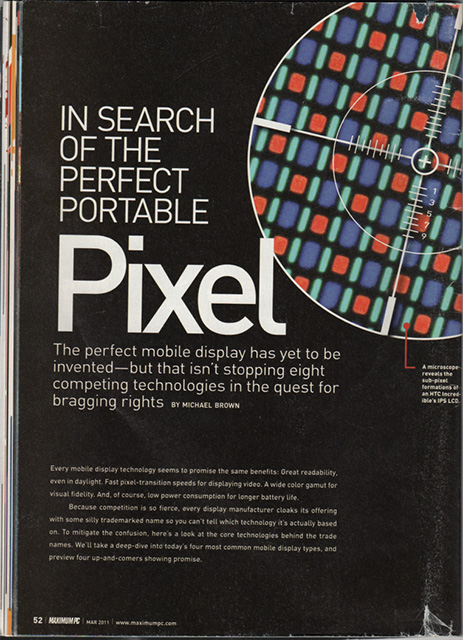
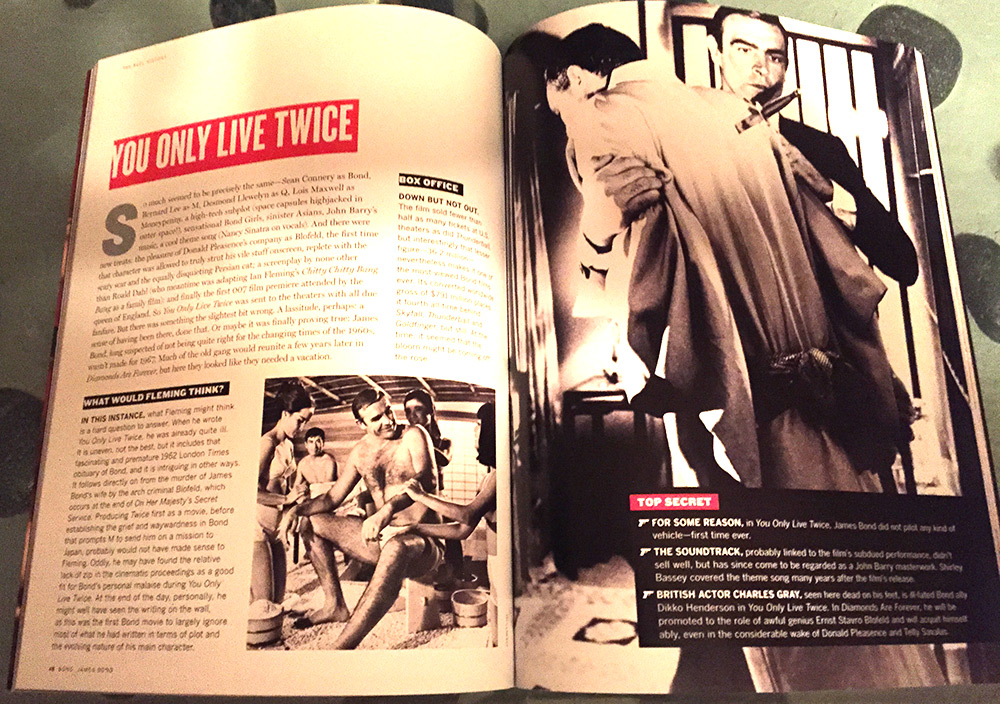
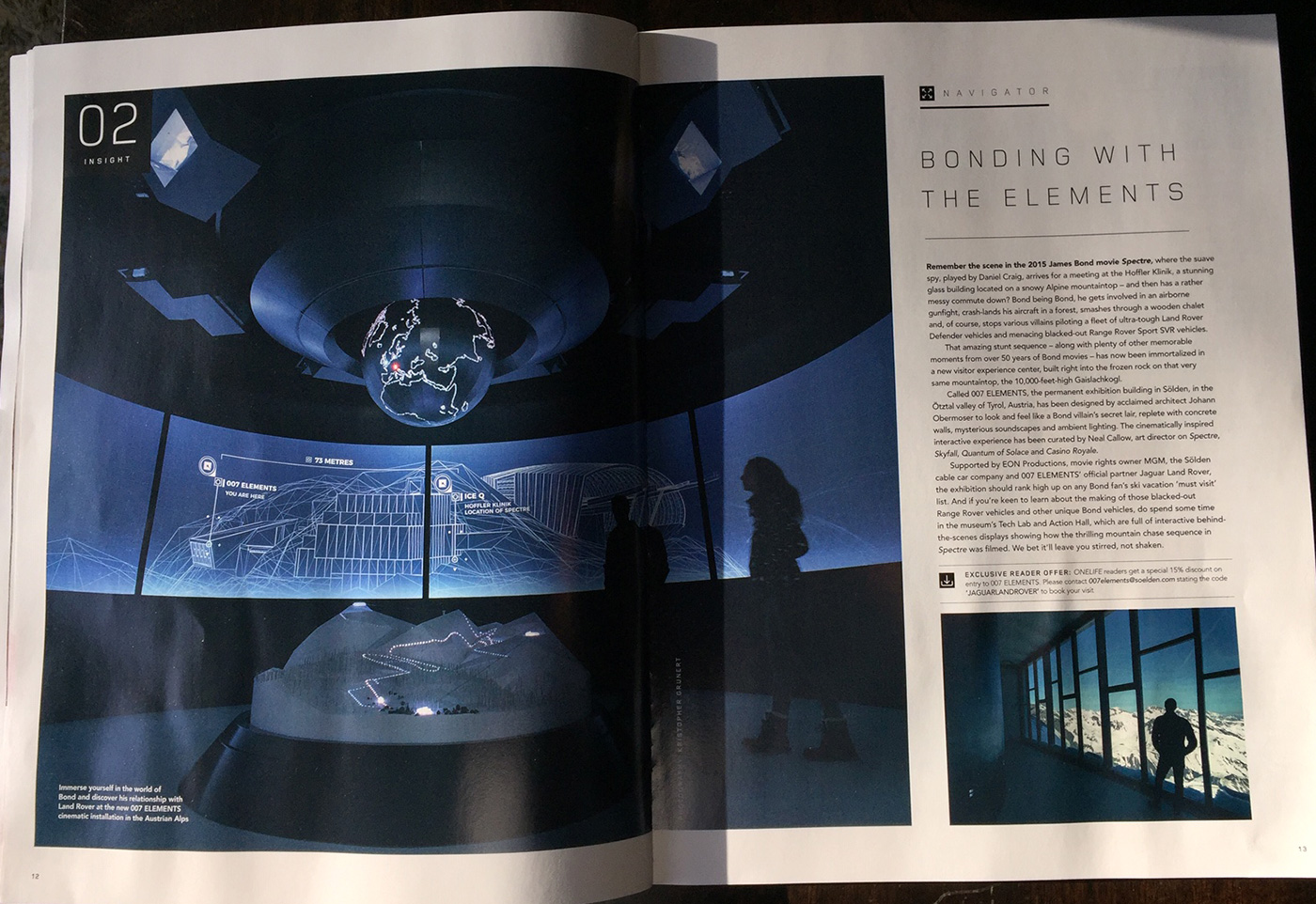
Explore web fonts and typographic design on the web using the content and typographic design of a magazine page (or spread) as inspiration. Find a printed magazine article with compelling typography and a clean, interesting layout. Using HTML and CSS, create a webpage that reflects the content/layout of the magazine article.

The Crimes in Web Typography series of videos review the CSS properties that you may need to explore. A great free resource and online book about web typography that you may wish to utilize as well is Professional Web Typography by Donny Truong.

Adhere to the following guidelines:

  1. Try to maintain a connection to the graphic/typographic design of the printed magazine article while creatively adapting the article for web delivery. You do not have to make your webpage design look exactly like the article (or use the same fonts or images), but the design of the magazine article should “inspire” your design.
  2. Focus on high-quality typographic design using modern CSS techniques.
  3. Make sure that you have at least four distinct typographic styles (such as styles for a top-level header, a subhead, a byline, and body copy).
  4. Use appropriate and semantic HTML markup (for content/structure) and CSS coding (for presentation/formatting).
  5. Use a CSS Reset to zero out browser preset margins and padding.
  6. Explore and use Web Fonts by either using a font hosting service (like Google's Web Fonts) or embedding the font using the @font-face declaration (such as available at Font Squirrel) or both.
  7. Integrate at least two images into the design (as foreground or background elements).
  8. Optionally, use Image Replacement Techniques to replace text with image on a header (or other elements, but not the body copy).
  9. You are encouraged to explore CSS3 styles such as text-shadow, column-count, column-gap, column-width, transforms, CSS Shapes, etc.
  10. You are encouraged to create a responsive design (adapt to mobile), but it is not required.
  11. Be creative and have fun.

Create a root folder/directory called "assignment2". Save your HMTL file as "index.html" and include your CSS file(s) (ie "styles.css") and image file(s) (ie "images/photo.jpg") within this "assignment2" folder. Using FTP, upload your "assignment2" folder/files into your "Lastname_Firstname" folder on the MAT server. See Publishing Instructions and FTP Info for the MAT Server for detailed FTP instructions and video tutorials about how to accomplish this.

Magazine Exercise / Typography Examples/Demos

Links + Resources

Typography

Fonts

Reference

Dreamweaver

Resets

Magazines and Books

These and other great books are free from O'Reilly (formerly Safari) Books Online using your Miracosta Surf ID and Password:
> Go to Top

Week 3 (2/4)

Topics + Learning Objectives

  • Review of FTP
  • Working with text/typography
  • CSS properties for web typograpahy
  • CSS Columns
  • CSS Shapes
  • CSS Transforms
  • Review of Photoshop for Creating and Optimizing Web Graphics
  • Optimizing Images for the Web
  • Formats for Optimizing Web Graphics
  • Working with Images in HTML and CSS

Required Assignments + Tasks

VIDEOS + TUTORIALS

Uploading your Files to the MAT Server Using sFTP

Working with Web Typogaphy - Inspired by Print Magazines (Required)

Optimizing Imagery for the Web Using Photoshop CC (Required)

  1. Image optimization - Introduction, image size and resolution (11:13)
  2. Image optimization - Image simplification (6:42)
  3. Image optimization - Compression and file formats (.jpg, .png, .gif, .svg) (25:45)
  4. Image optimization - Saving to WebP (3:55)

Images in HTML and CSS (Recommneded)

  1. Images in HTML (from Mozilla)
  2. HTML Images (from W3 Schools)
  3. Image Backgrounds with CSS (from Mozilla)
  4. CSS Style Images (from W3 Schools)

Working with Dreamweaver (Optional)

Images in Dreamweaver (Optional)

Formatting Your Page with CSS and Dreamweaver's Designer Panel - Dreamweaver and CSS in Practice (Older / Optional)

  1. Page properties (11:47)
  2. Creating and editing CSS styles - The CSS Designer Panel (34:42)
  3. CSS Styles in Practice on the HyperPoem Exercise - Including Working with Images, IDs, ViewPort Units, Drop Shadows, and more (37:39)

Links + Resources

> Go to Top

Week 4 (2/11)

Topics + Learning Objectives

  • Focus on completing Assignment #2
  • Introduction to Project #1 and Assignment #3
  • Single Page Scrolling Websites
  • Exploring Basic Website Structures and Multi-Page Navigation

Required Assignments + Tasks

VIDEOS + TUTORIALS

Introduction to Project #1:

Assignment #3 - The Interactive Mood Board Exercise Demos:

Project #1: single page scrolling website (DUE 3/25)

Design and develop a 'one-page' website for a fictitious book, movie, album, or event. See the intro video and review the full project details on the projects page.

ASSIGNMENT #3: HTML/CSS Interactive Mood Board (DUE 2/25 2/27)

Many designers conduct informal creative investigations, "mood boards," or "style tiles" to explore color, typography, imagery, layout possibilities and more around a united theme/idea/concept. These creative investigations are the birthplace and playground for design ideas that will ultimately inform your site's design.

In this exercise, you will explore creating basic webpage layouts and web navigation in order to create an interactive 'mood board' to guide the stylistic/conceptual development of Project #1.

Your exercise/mood board will take the form of a website with at least three pages of content and a navigation menu that links each page together. One page will explore color and include at least two color palettes (5 colors max per palette). One page will explore typography and include typographic examples of a headline, subhead, and body copy (styled with CSS). One page will explore imagery and include images that can be used as potential foreground or background graphics.

The layout and content should consist of:

  • A <header> with the name of your ficticious book, movie, or album concept.
  • A <nav> with a global navigational menu or navigation bar that links to each of your pages (using relative link paths). The buttons/links on this navigation(<nav>) bar should be labeled "Colors", "Typography", and "Imagery" (any other pages or links are optional). Mark up the nav menu using HTML lists (<ul> and <li>) and style them with CSS (so that they are made to look and function like menu buttons).
  • <section> or <article> tags with your content (either colors, typography, or imagery). If using multiple sections on a page, create two or three column layouts through the use of floats, flexbox, or CSS grids.
  • A <footer> with your name (other content is optional).

Create an HTML/CSS page with the elements above. Layout the page in a logical way, such as having the header extend across the page (100%, auto, or a fixed width), the section content next (with optional columns), and a footer that clears all elements to extend across the bottom of the page.

Create a root folder/directory called "assignment3" and save your HMTL and CSS file(s) (ie "styles.css") within this root folder. In addition, create an "images" folder inside of your root directory and save all of your optimzied images into this folder (ie "images/photo1.jpg"). Using FTP, upload your "assignment3" folder into your "Lastname_Firstname" folder on the MAT server. See Publishing Instructions and FTP Info for the MAT Server for detailed FTP instructions.

Links and Resources

Single Page Website Inspiration

About Mood Boards and Style Tiles

Color Resources

Fonts and Web Font Hosting Services

Image Resources

> Go to Top

Week 5 (2/18)

Topics + Learning Objectives

  • Single Page Scrollers
  • Smooth Scrolling
  • Scroll Snap
  • Project #1 techniques
  • CSS for Buttons and Menus
  • Creating Navigation Menus with Lists and CSS
  • CSS Rollovers
  • CSS Image Replacement Technique
  • CSS Sprites

Required Assignments + Tasks

VIDEOS + TUTORIALS

Assignment #1 Feedback (view your own, others are optional)

  1. Video Feedback on Assignment #1 - Including Using the Firefox Inspector to Explore Alternative CSS Styles (playlist)

Single Page Scrolling Websites (modern techniques useful for Project #1)

  1. Single Page Scrollers - Part 1 : Structure and Layout (26:11)
  2. Single Page Scrollers - Part 2 : CSS Techniques (scroll behavior, scroll snap, parallax) (18:33)

CSS Buttons and Menus (videos #1 and #3 most useful for menu design)

  1. CSS for Creating the Ultimate Navigation Menu Button (15:48)
  2. Recreating the Nav Menu Button with the CSS Designer Panel (15:23 - OPTIONAL)
  3. HTML and CSS for Navigation Menu Design and Layout (21:23)
  4. RollOver Buttons Using Graphics (14:11)

CSS Image Replacement (classic technique)

  1. CSS Image Replacement Technique (9:09)

Links and Resources

About Mood Boards and Style Tiles

Elements of Design (inspiration and resources)

> Go to Top

Week 6 (2/25)

Topics + Learning Objectives

  • Single Page Scrollers
  • Smooth Scrolling
  • Scroll Snap
  • Project #1 techniques
  • CSS for Buttons and Menus
  • Creating Navigation Menus with Lists and CSS
  • CSS Rollovers
  • CSS Image Replacement Technique
  • CSS Sprites

Required Assignments + Tasks

VIDEOS + TUTORIALS

Exploring CSS Animation (animation techniques useful for Project #1)

  1. The Transition Property (7:39)
  2. The Animation Property and @keyframes (23:23)
  3. Animaton-Timeline and Scroll-based Animations (Coming next week)

Creating a CSS3 Slideshow (without JS) using Keyframe Animation

  1. Creating a Pure CSS3 Slideshow (23:52)

An Overview of CSS3 Transitions (from others - recommended)

  1. Transitions (article/tutorial from Learn CSS)
  2. An Interactive Guide to CSS Transitions (from joshwcomeau.com)

Responsive Design and Mobile Optimization (slightly dated but useful)

  1. Introduction to Responsive Design (17:23)
  2. Media Queries - Part 1 - Introduction and Syntax (18:57)
  3. Media Queries - Part 2 - Layout, Box-Sizing, Within DW (17:50)
  4. Understanding Viewports, Screen Sizes, and Pixel Densities (20:39)
  5. Fluid Layouts - Part 1 - Overview, Moving from Fixed to Fluid Designs (11:08)
  6. Fluid Layouts - Part 2 - Coding Fluid Layouts (31:47)
  7. Flexible Images and Backgrounds (31:48)

Links and Resources

CSS3 Animation

  1. Transitions (article/tutorial from Learn CSS)
  2. An Interactive Guide to CSS Transitions (from joshwcomeau.com)
  3. CSS Animation (article/tutorial from Learn CSS)
  4. Using CSS Animations (MDN Reference)
  5. https://cubic-bezier.com (Timing Function Tool)
  6. https://animate.style/ (CSS Animation Library)

Media Queries

Responsive Design

> Go to Top

Week 7 (3/4)

UPCOMING Topics + Learning Objectives

  • Project #1 Techniques
  • CSS Animation
  • Scroll-based Animations
  • Responsive Design and Navigation

> Go to Top